

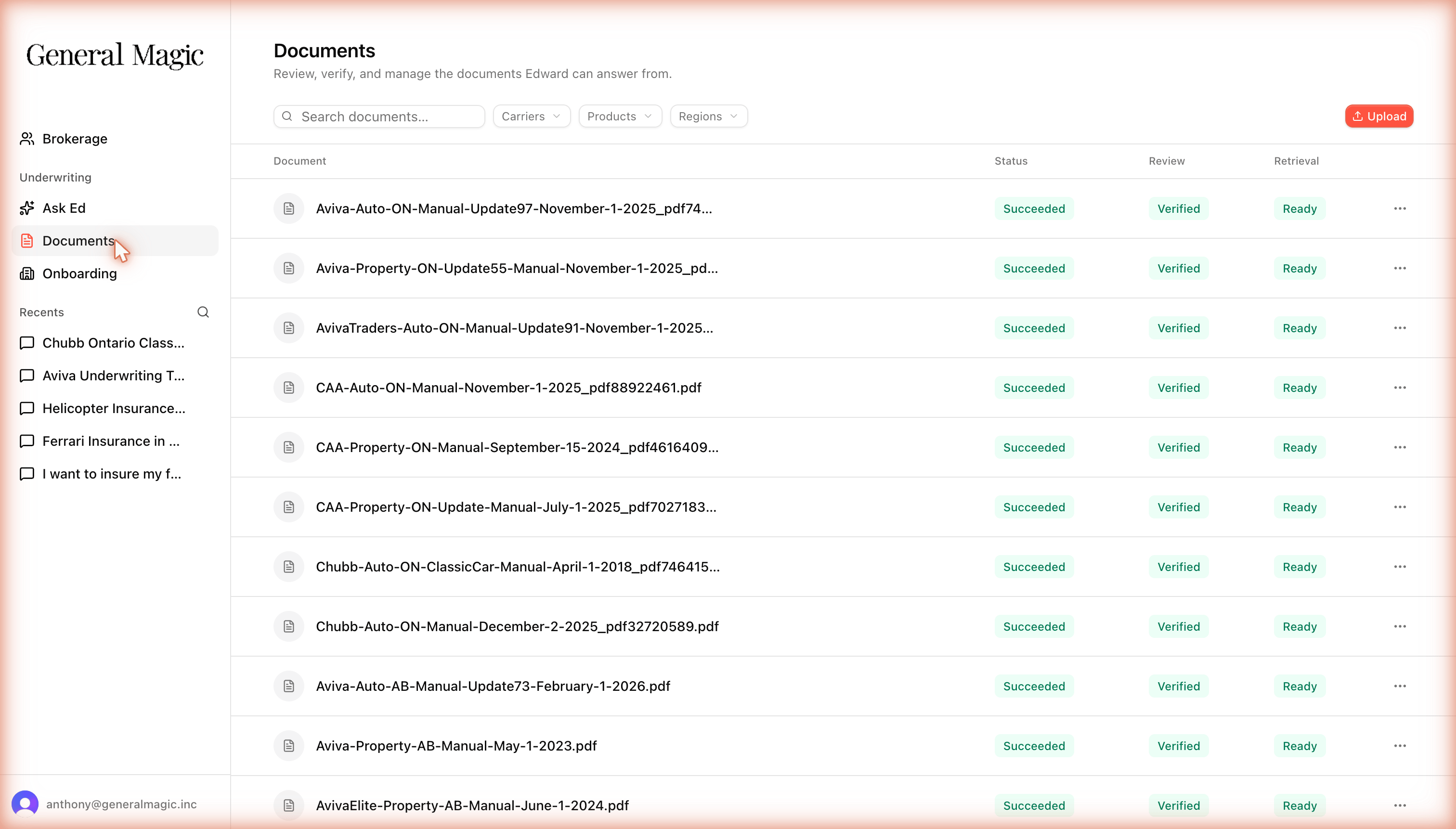
The Documents screen: filter by carrier, product, or region, upload new files, and see each document's Status, Review, and Retrieval state.
Document types
Edward treats documents differently depending on how authoritative they are:Edward ranks evidence: manuals earn trust, supplementary documents refine it, and general documents only add context. An answer will never let a general document override a carrier’s underwriting rule.
Where documents come from
Your workspace draws on two sources:- General Magic documents: shared carrier documents we maintain, available to every brokerage and filtered to each broker’s scopes.
- Your brokerage’s documents: documents you upload, visible only within your brokerage and filtered to each broker’s scopes.
Adding a document
1
Upload the file
On the Documents screen, click Upload and choose the PDF.
2
Confirm its details
Edward reads the document and proposes its carrier, product, region, and date. Review these, because accurate tagging is what routes the document to the right questions.
3
Verify it
Set the document’s Review to Verified. Once its Retrieval shows Ready, it’s live and Edward can answer from it.
Keeping your library current
Edward resolves conflicts by date: when two documents disagree, the newer authority governs. To keep answers accurate:- Upload bulletins and updates as they arrive rather than editing old files. Edward layers the newer document on top of the base manual automatically.
- Replace outdated manuals when a carrier issues a new edition.
- Remove or re-scope documents that no longer apply.